
Unomundi Onboarding Guide
Setting up takes just a few minutes. Here's a step-by-step guide so you and your kids can get started without any fuss.
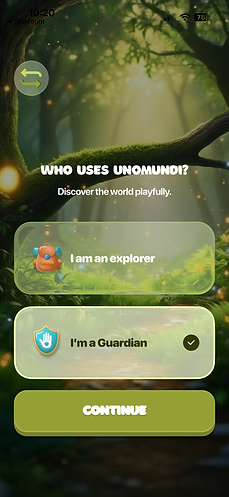
Step 1: Create your Guardian account
When you first open the app, select "I'm a Guardian" to get started.
With 'Guardian' we mean grown-ups, essentially. It's important you start as Guardian - not as an explorer - because we need your permission for when your kids start playing with the app. Upcoming releases will remove the option to start with a child account.
Step 2: Enter your email
Enter your email to register or, if you already have an account, tap on the login button at the bottom.
Then, tick both boxes to confirm you're a legal guardian and agree to our Terms and Privacy Policy, then tap Continue.
You'll receive a verification code by email. Enter it on the next screen and you're in.


Step 3: Add your explorer - your child
Welcome to your home page. From here, you can reach all the sections of the app.
Once you're on the home page, tap "Profile" in the navigation bar at the bottom right.
Step 4: Fill in your child's details
Then tap the + button to add a new explorer.
Enter your child's name, age, and country, then tap "ADD EXPLORER" to finish the setup.
If your child already has an Explorer account with a code, you can link it directly from this screen instead.


Step 5: Start exploring!
Your child (explorer) is now linked to your account. Tap their name to access their settings at any time.
When you're ready to hand over the phone, tap "Switch Account" to jump into their profile, and let them explore the world with Una.
Want to keep an eye on their progress from your own screen? Just tap the toggle next to their name.